

































































Kọ̀ǹpútà tó ní modẹ́ẹ̀mù 4G tàbí 5G nínú (Surface Pro LTE tàbí 5G, ọ̀pọ̀ àwòṣe ThinkPad, Latitude àti EliteBook) lè lo eSIM ìrìn-àjò fún data fóònù. Kọ̀ǹpútà láìsí modẹ́ẹ̀mù kò lè ṣe é: ẹ lo hotspot fóònù yín dípò rẹ̀.
Ṣé kọ̀ǹpútà mi ní eSIM?
Ẹ ṣí Settings → Network & internet. Tí ojú-ìwé Cellular bá wà pẹ̀lú eSIM profiles, kọ̀ǹpútà yín ní eSIM. Kí ojú-ìwé Cellular má sí túmọ̀ sí pé kò sí modẹ́ẹ̀mù fóònù: ẹ pín íńtánẹ́ẹ̀tì láti fóònù yín dípò rẹ̀.
Windows 11: fi profáìlì eSIM kún un
Ẹ kọ́kọ́ sopọ̀ mọ́ Wi-Fi. Ẹ ṣẹ̀dà kóòdù ìmúṣiṣẹ́ láti eSIM yín nínú áàpù Roambee tàbí ní my.roambee.io: ìlà tó ń bẹ̀rẹ̀ pẹ̀lú LPA:1$.
Àwọn àwòrán inú ìgbésẹ̀ wọ̀nyí jẹ́ àwòrán àpèjúwe.
-
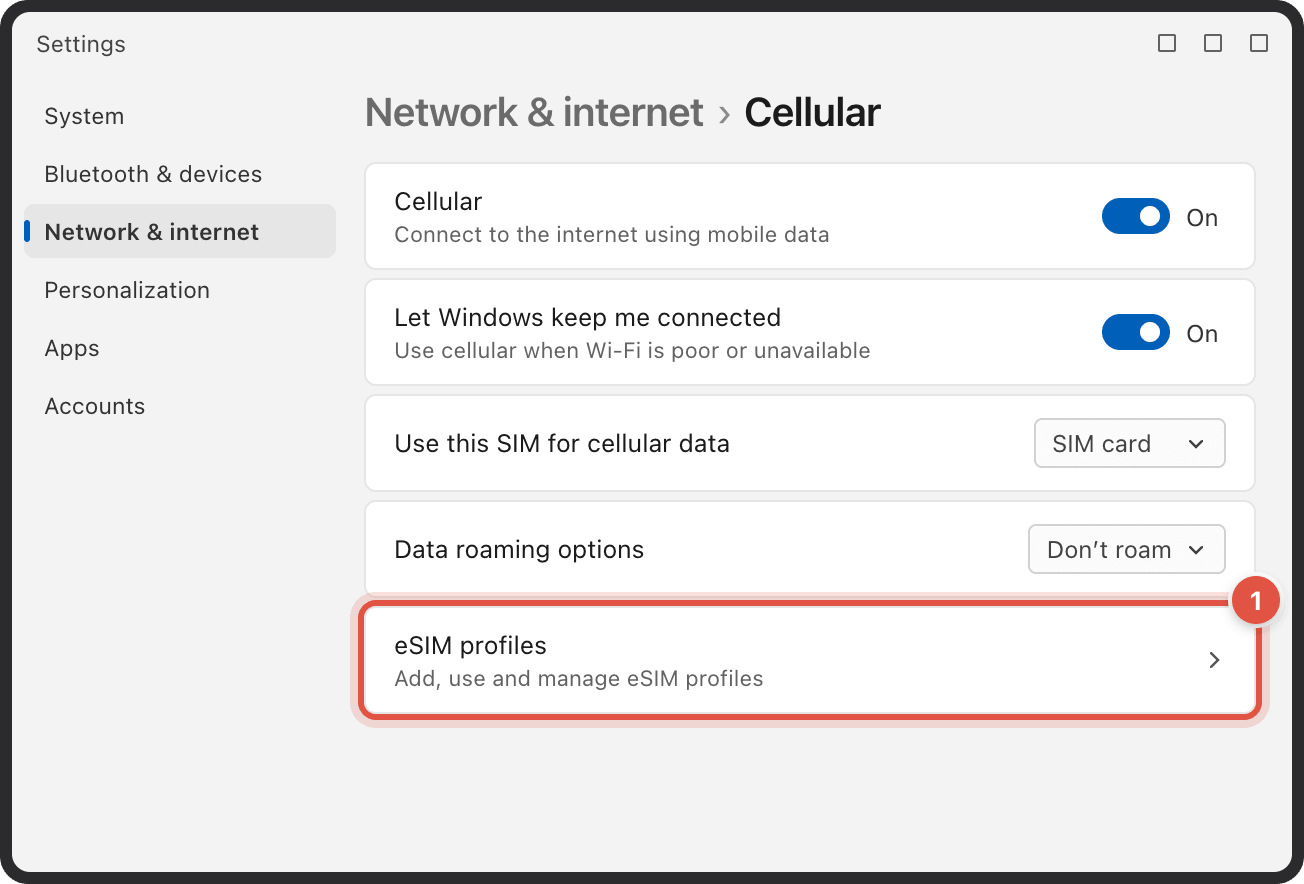
Ẹ ṣí Settings → Network & internet → Cellular kí ẹ sì yan eSIM profiles.
Àwòrán àpèjúwe -
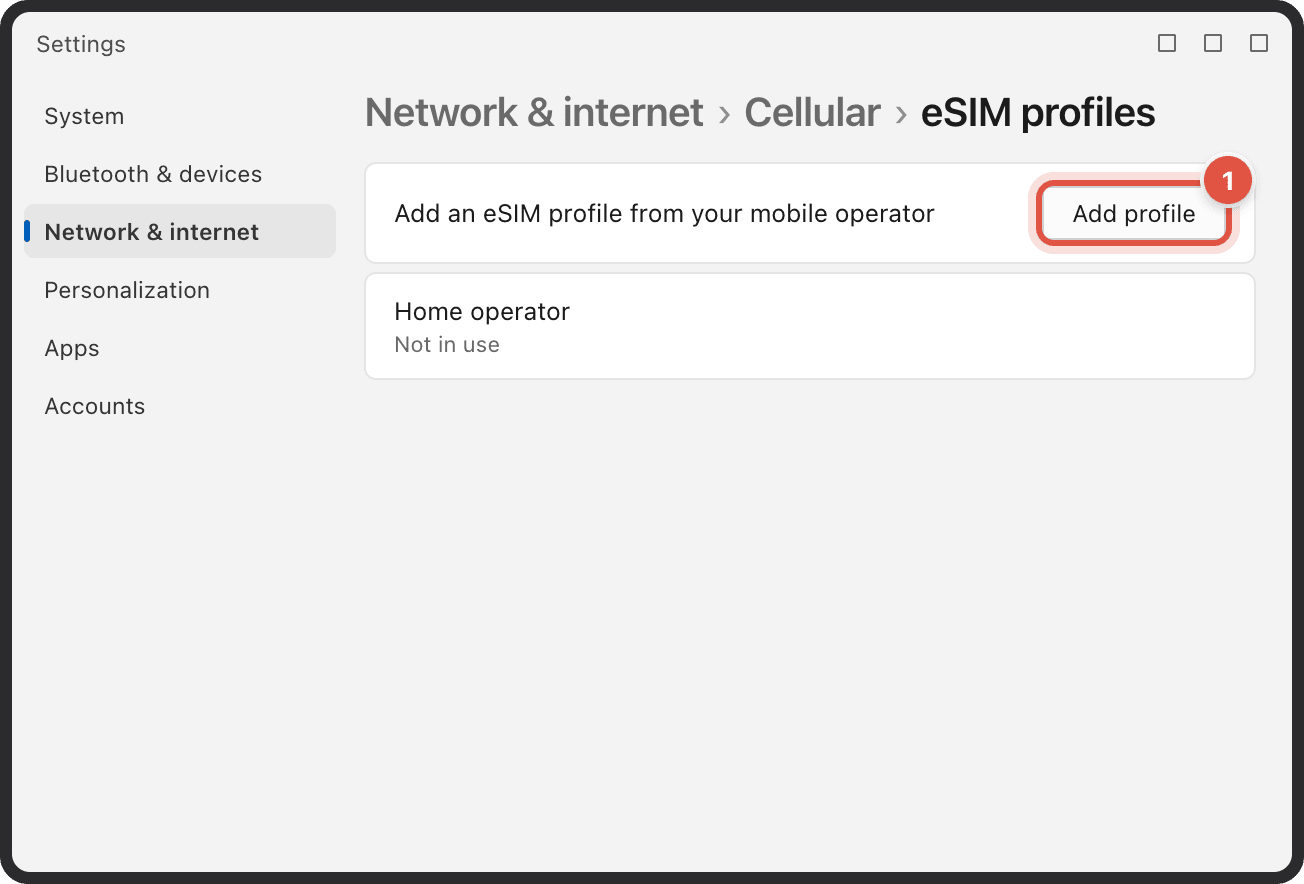
Lẹ́gbẹ̀ẹ́ Add an eSIM profile from your mobile operator, ẹ yan Add profile.
Àwòrán àpèjúwe -
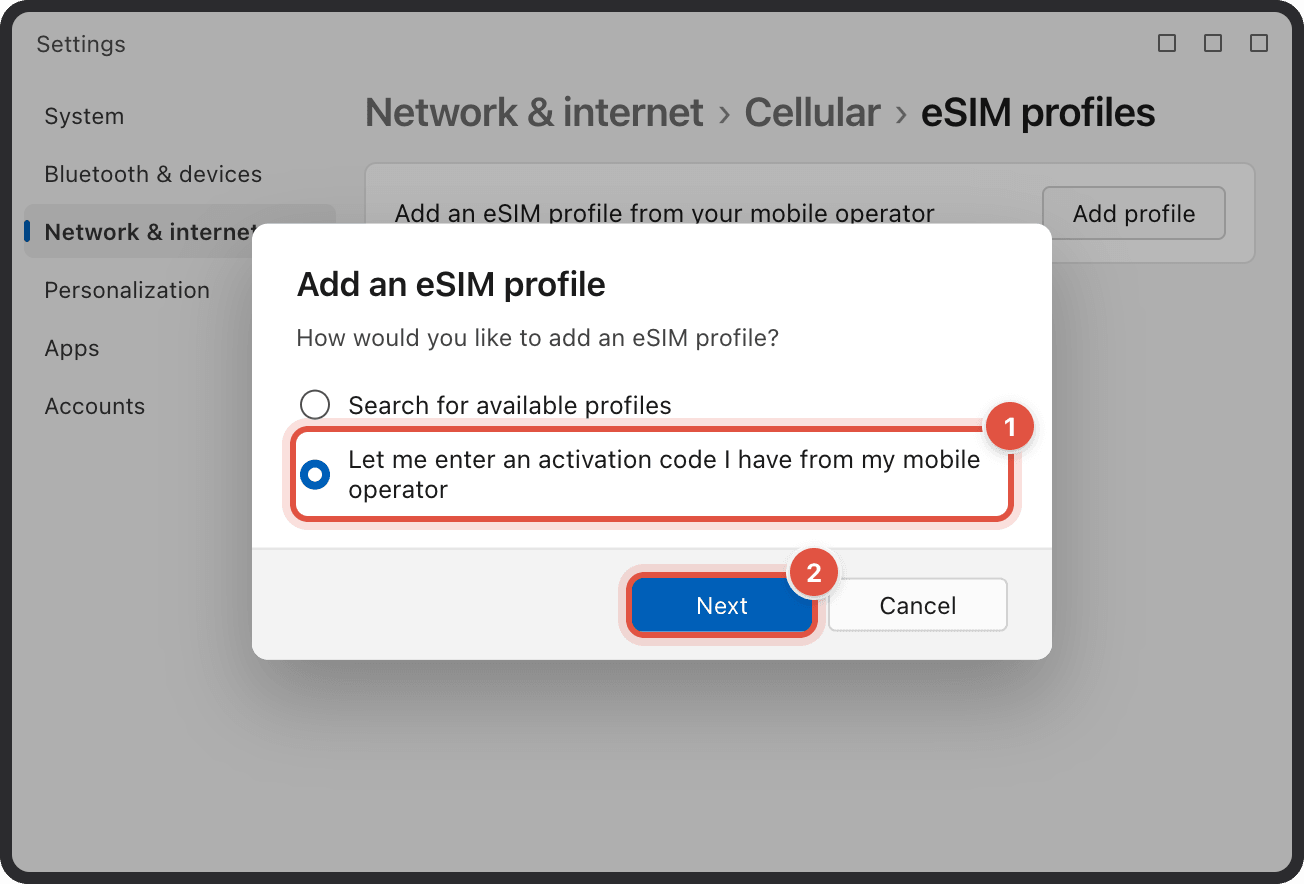
Ẹ yan Let me enter an activation code I have from my mobile operator kí ẹ sì yan Next.
Àwòrán àpèjúwe -
Ẹ lẹ gbogbo kóòdù ìmúṣiṣẹ́, títí kan LPA:1$, kí ẹ sì yan Next, lẹ́yìn náà Download. Kóòdù inú àwòrán jẹ́ àpẹẹrẹ.
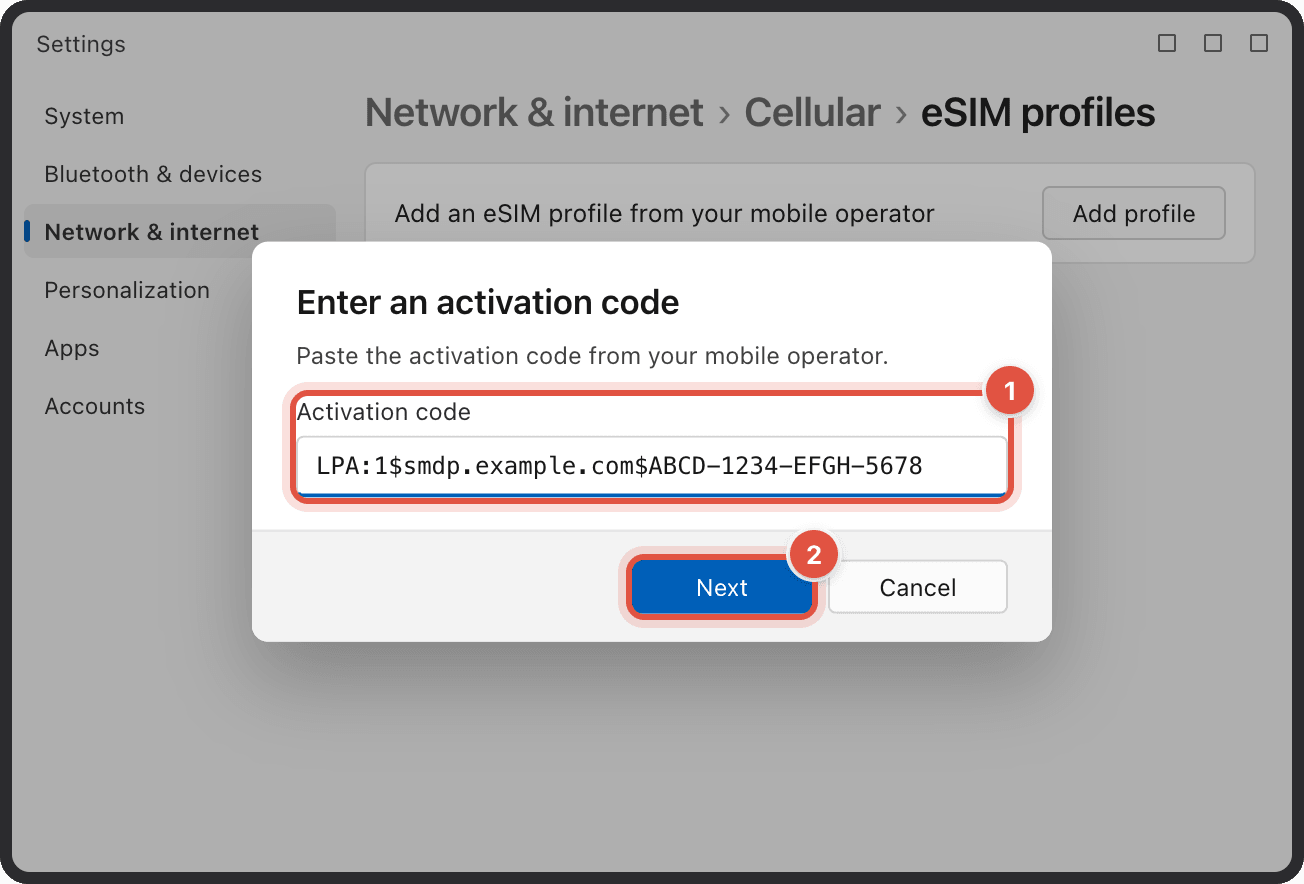
Àwòrán àpèjúwe -
Ẹ yan profáìlì tuntun kí ẹ sì yan Use. Ẹ fìdí rẹ̀ múlẹ̀ pẹ̀lú Yes.
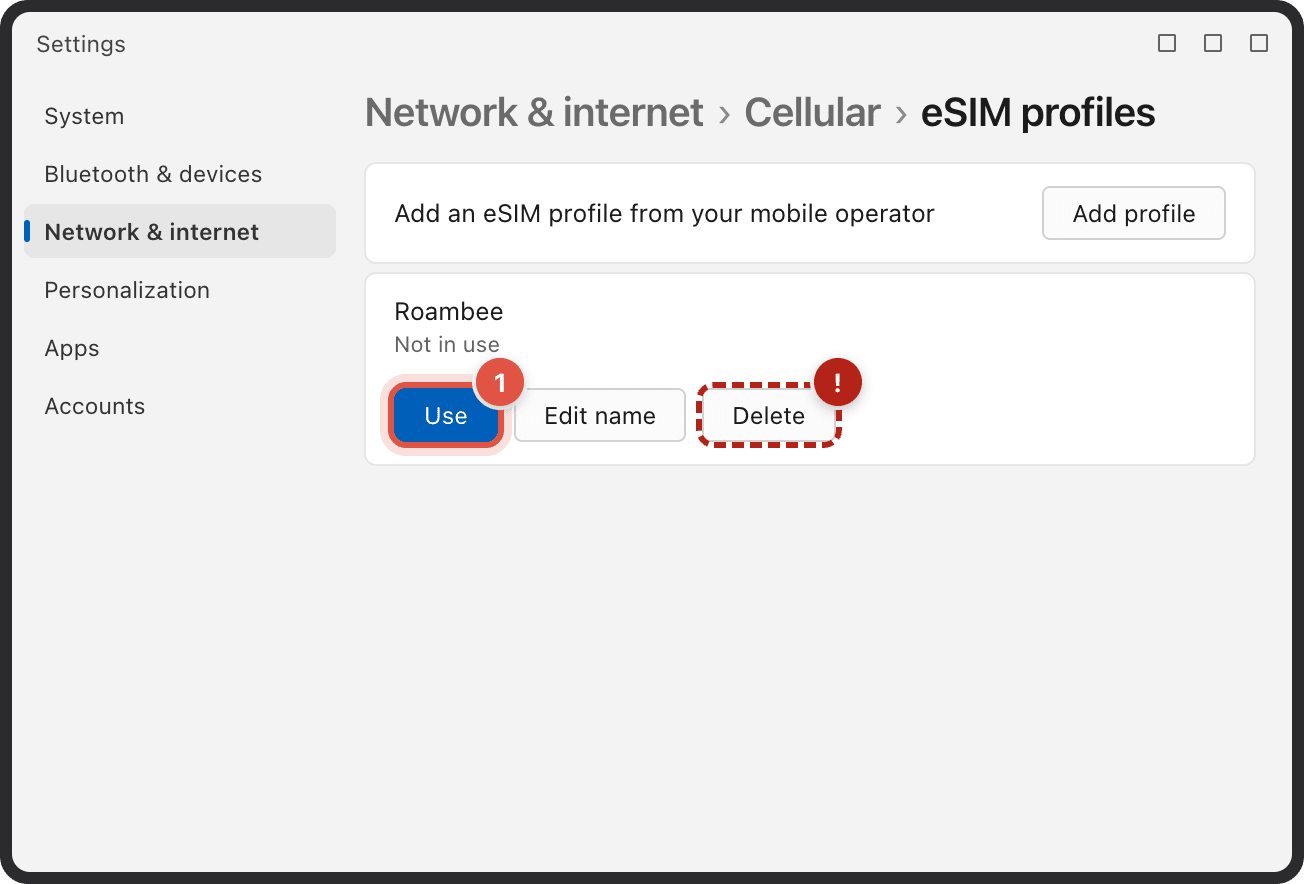
Àwòrán àpèjúwe
Lo eSIM fún data kí ẹ sì gba roaming láàyè
Nígbà tí ẹ bá balẹ̀, ẹ tún ṣí Settings → Network & internet → Cellular.
Àwọn àwòrán inú ìgbésẹ̀ wọ̀nyí jẹ́ àwòrán àpèjúwe.
-
Ẹ ṣètò Use this SIM for cellular data sí eSIM, ẹ fi Let Windows keep me connected sílẹ̀ ní títàn, kí ẹ sì ṣètò Data roaming options sí Roam.
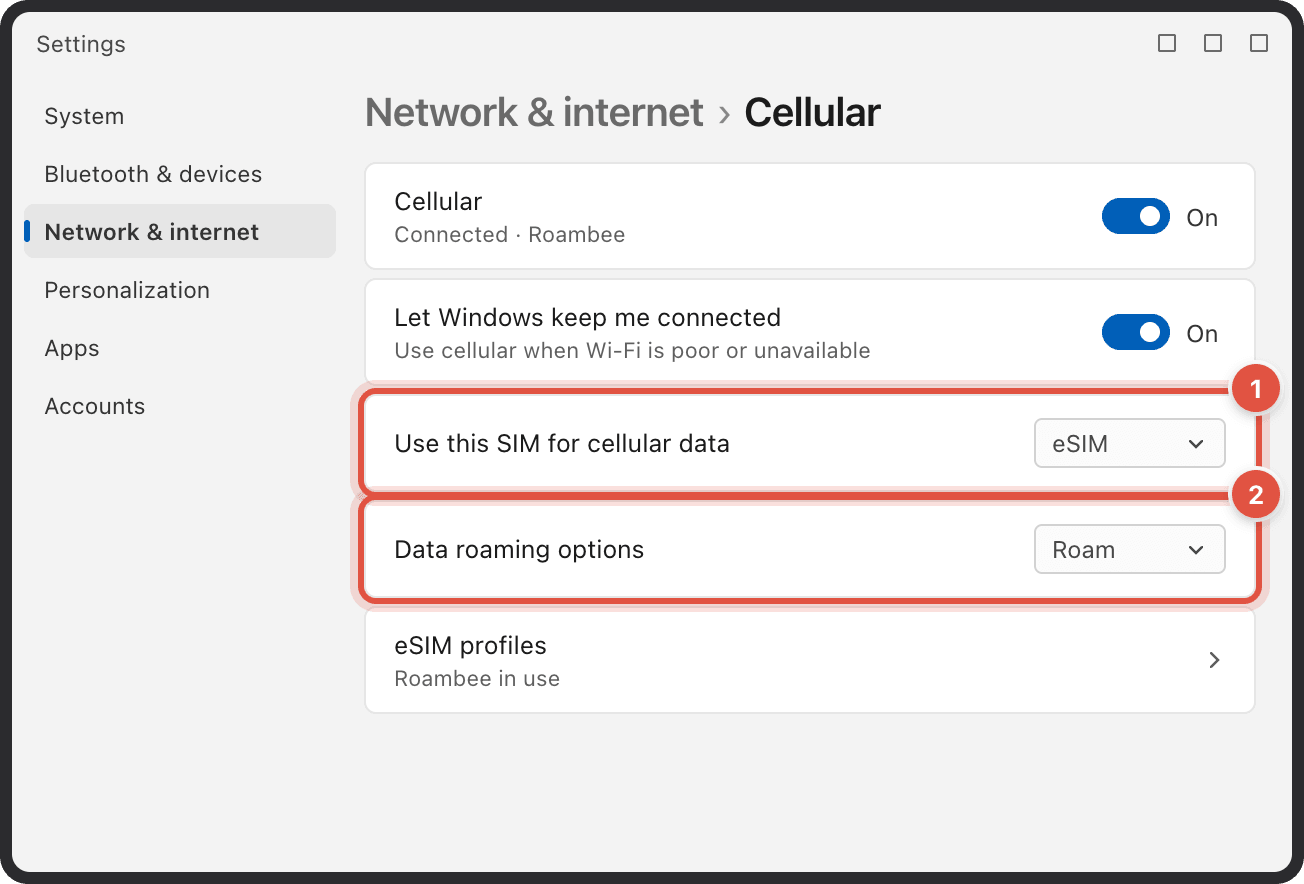
Àwòrán àpèjúwe
Kò sí owó roaming lórí Roambee. Windows ń pè é ní roaming nítorí pé Roambee ń lo àwọn nẹ́tíwọ́ọ̀kì alábàáṣiṣẹ́pọ̀ ní ibi tí ẹ lọ.
Windows 10
Ìgbésẹ̀ jẹ́ ọ̀kan náà pẹ̀lú orúkọ tó yàtọ̀ díẹ̀: Settings → Network & Internet → Cellular → Manage eSIM profiles → Add a new profile → Let me enter an activation code I have from my mobile operator. Lẹ́yìn náà ẹ yan profáìlì náà kí ẹ sì yan Use. Lábẹ́ Cellular, ẹ ṣètò Use this SIM for cellular data sí eSIM àti Roaming options sí Roam.
Àwọn àwòrán inú ìgbésẹ̀ wọ̀nyí jẹ́ àwòrán àpèjúwe.
-
Windows 10: Settings → Network & Internet → Cellular → Manage eSIM profiles.
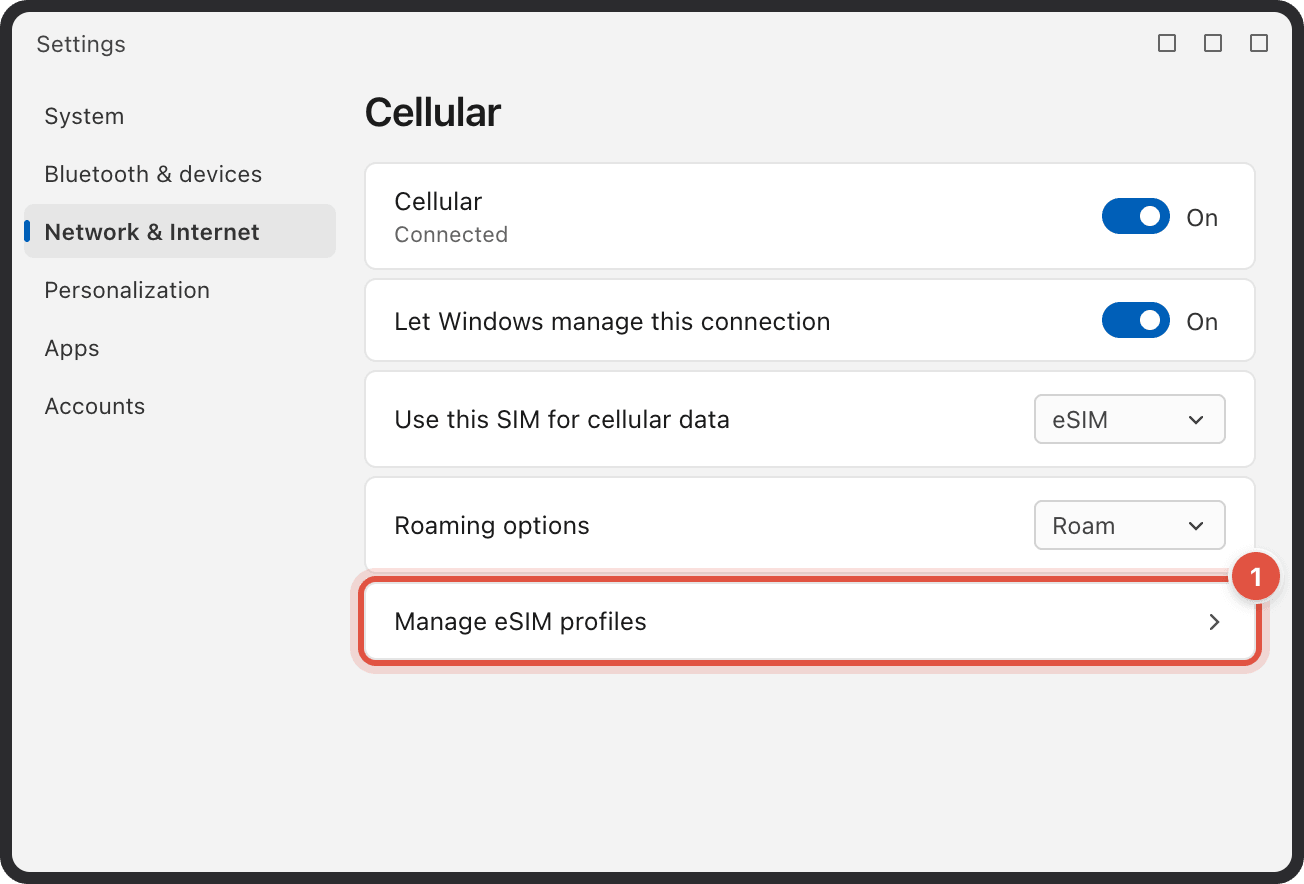
Àwòrán àpèjúwe
Tí kò bá sopọ̀
Ẹ tan Airplane mode kí ẹ sì pa á. Ẹ ṣàyẹ̀wò pé a ń lo profáìlì Roambee àti pé a ṣètò roaming sí Roam. Tí Windows bá béèrè fún APN, ẹ ṣí Cellular → Mobile operator settings → Add APN kí ẹ sì lo APN tí a fi hàn pẹ̀lú àlàyé eSIM yín, tí ó bá wà. Ẹ má pa profáìlì rẹ́ láé nígbà ìrìn-àjò: eSIM ń wọlé lẹ́ẹ̀kan.